
Using the Konquest MCP Server with Claude
Overview
The Konquest MCP server allows you to interact with your Konquest account directly through Claude, using natural language. Rather than calling the API manually, you can describe what you want to do and Claude will handle the rest - including creating users, creating or updating placements, and attaching timesheets. This document assumes you are using Claude Team, instructions may vary for a personal account.
This guide has been tested with Claude (claude.ai).
Setting Up the Connection
Step 1: Enable for Organisation
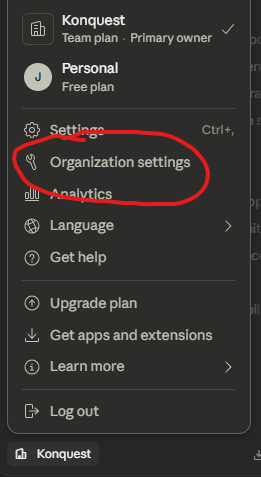
In Claude, navigate to Organization Settings.
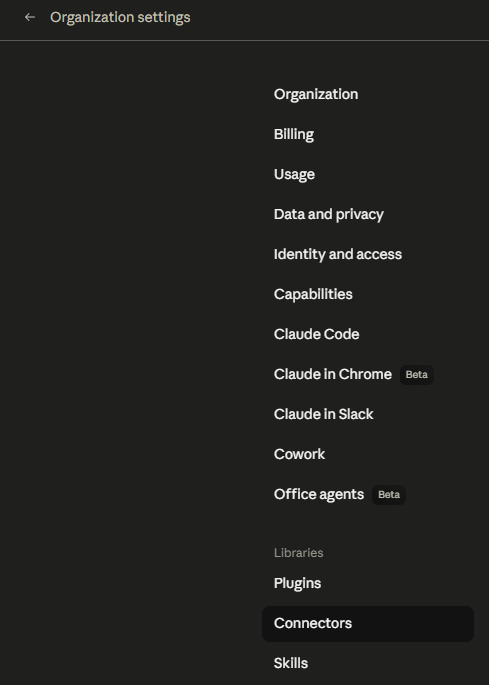
Select Connectors from the Organisation Settings menu.
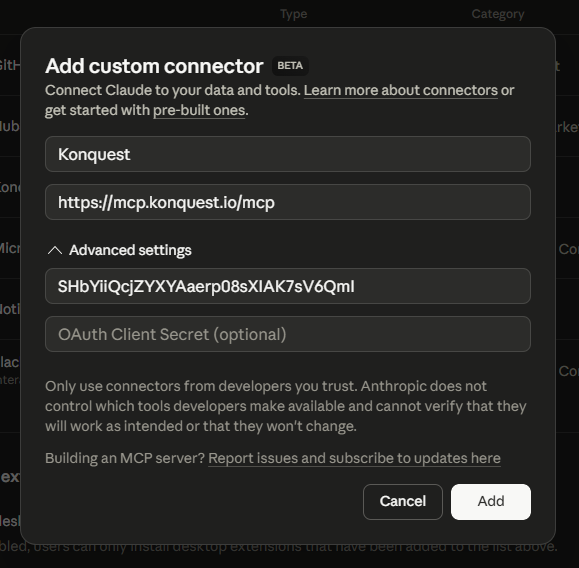
Click Add.

Enter the following details when prompted:
- URL:
https://mcp.konquest.io/mcp - Client ID:
SHbYiiQcjZYXYAaerp08sXIAK7sV6QmI
Step 2: Authenticate with Konquest
The previous step will enable this for your organisation. After completing that, you can add it for your specific user.
First go to Customize.
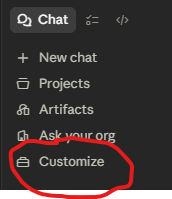
Then Connectors.
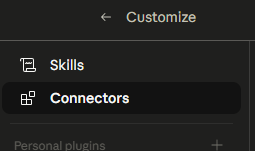
Find Konquest in the list of Not connected connectors.
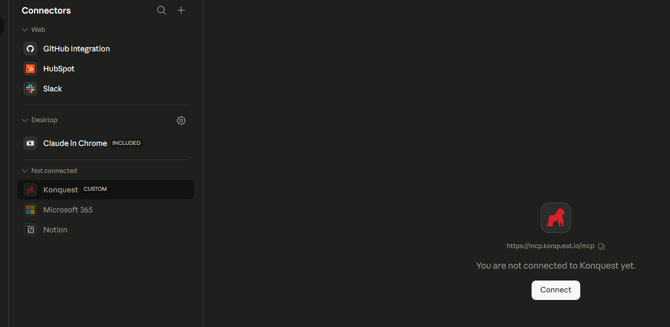
Click Connect.
Follow the on-screen steps to connect your Konquest account. You will be redirected to Konquest to complete the authorisation flow as your Konquest user, then returned to Claude.
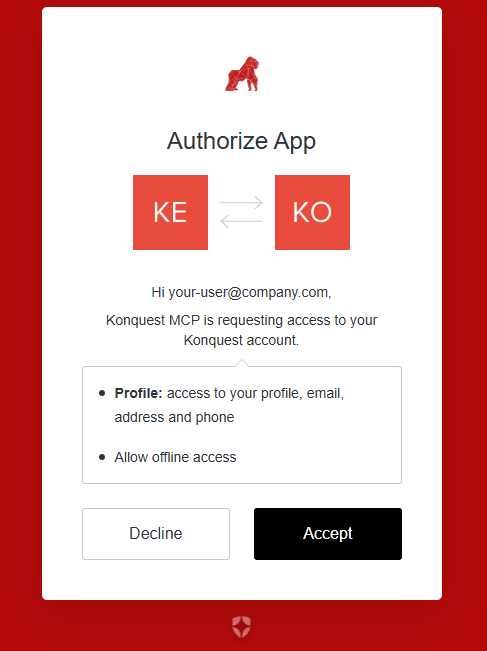
Once accepted, you will be redirected back to Claude.
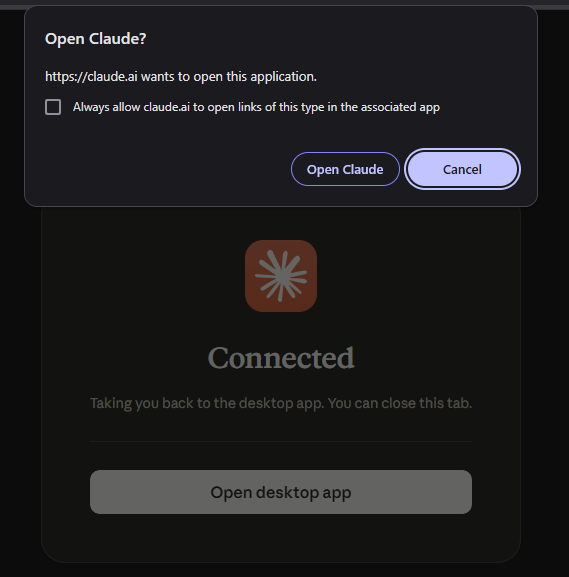
Step 3: Confirm the Connection
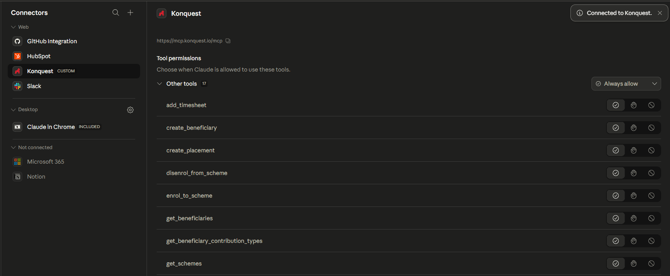
Once connected, Konquest will appear in your connectors list with a list of all of the available tools. You are now ready to use the Konquest tools in Claude.
Available Tools
The Konquest MCP server is actively developed, so new tools are added regularly. Rather than duplicate the list here, we maintain a full, categorised reference separately:
The Two Most Useful Tools
import_placements
This is the recommended starting point for most use cases. It is an orchestration tool - you give it a file (such as a CSV or spreadsheet export from your CRM or recruitment system) and it handles the full workflow, prompting you where necessary:
- Checks for existing users and creates any that are missing
- Creates new placements or updates existing ones
- Sets beneficiaries, terms, and custom fields where data is present
You do not need to pre-process the file or call individual tools. Claude will interpret the data and drive the workflow.
Example prompt:
"Import the placements from the attached CSV. Create any missing users and update existing placements where the worker and company already match."
import_timesheets
This tool handles timesheet ingestion for contract/temp placements. Provide a file containing timesheet data and Claude will match entries to the correct placements and attach them. As with import_placements, you do not need to pre-process the data.
Example prompt:
"Here is this week's timesheet export. Please attach these to the relevant contract placements."
Pre-built Prompts in Claude
If you are using Claude via the Claude desktop app, pre-built prompts for Konquest are available directly from the connector menu. Access them by clicking the + button, selecting Connectors, hovering over Add from Konquest, and choosing from:
- Import placements
- Import timesheets
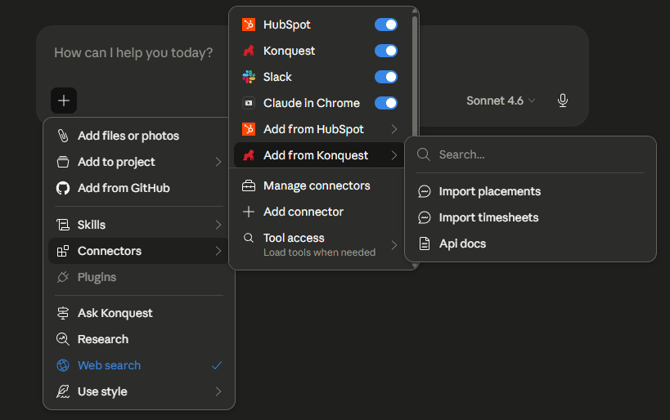
These prompts give Claude the right context to get started without you needing to write instructions from scratch.
Tips
- Attach your file before sending your prompt. Claude needs the file in context to process it.
- Your permissions apply. Because Claude acts as your authenticated Konquest user, it can only perform actions you could carry out yourself through the Konquest UI. It cannot bypass any role-based restrictions on your account.
- Custom fields matter. If your placements use custom fields to drive commission rules, make sure the values in your source file match what is configured in Konquest. See the Building an Integration with Konquest article for details on custom field behaviour.
- Users are created automatically by the import tools when missing - you do not need to run a separate user sync first.
- The import tools are idempotent by intent - running them again with the same data should not create duplicates, provided worker name and company are consistent.
Further Support
For questions about the MCP server or to report issues, contact: support@konquest.io