
Billing adjustments vs statement adjustments
Konquest has two kinds of manual adjustment, and they work at different stages of the calculation.
- Billing adjustments (this article) change the value of a placement. The adjusted figure flows through your commission calculations, so it counts towards threshold and band qualification exactly as if it had come from your CRM.
- Statement adjustments are added to a user's statement after all calculations have run. They change what's payable on that statement, but they don't affect billings, thresholds or bands.
If you need a correction to count towards someone's targets, adjust the billing. If you simply need to add or remove an amount from what someone is paid, use a statement adjustment.
Charges and payments
There are two types of transaction you can add to a placement.
- A charge is money you receive from the client.
- A payment is money you pay out to the worker.
On a contract placement, the margin for a date is its charges minus its payments. Permanent placements only support charges, since there's no worker to pay on a permanent placement.
How adjustments affect a placement's value
A manual transaction always takes priority over the other values on the placement for the same date.
- If you add a charge or payment on a date that already has a value, such as a permanent fee or a timesheet, the transaction replaces that value for the date.
- If you add it on a new date, it creates a new commissionable value on the placement.
- If a date has more than one charge or payment, they add together.
For example, a contract placement has a timesheet dated 25 September with a £2,400 charge and a £1,750 payment, giving £650 margin. If you add a £2,400 charge and a £1,800 payment on 25 September, the margin for that date becomes £600.
Who can add adjustments
Only account admins can add or delete charges and payments. Other users can see a placement's transactions but won't see the add or delete controls.
Before you start: check the placement's rates
On a contract placement, Konquest uses the placement's current rates to set the currency of any transaction, so these need to be in place first.
- To add a charge, the placement needs a current charge rate.
- To add a payment, the placement needs a current pay rate.
If a rate is missing, the option is greyed out with a note explaining why. If both are missing, the + button is disabled. To fix this, add the missing rate in the placement's Terms box, then come back to the Transactions box.
Permanent placements don't need any rates set up, but you can only add charges to them. The Payment option shows as "Not supported on permanent placements".

Adding a charge or payment
Go to the placement's page and find the Transactions box. It appears on every placement, even if no transactions have been added yet. Select the ⓘ icon beside the heading for a quick reminder of how transactions work.
- Select the + in the top right of the Transactions box.
- Choose Charge or Payment.
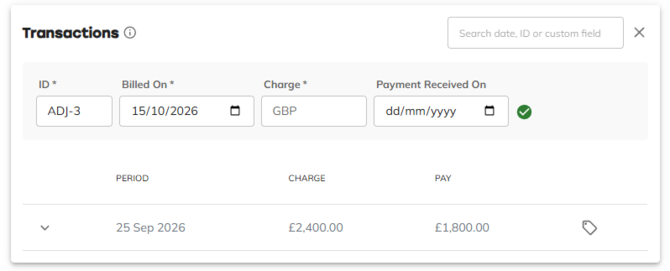
- Fill in the form that opens above the table:
- ID: a suggested ID such as ADJ-3 is filled in for you. You can change it, but read the next section first.
- Billed On (charges) or Paid On (payments): the date of the transaction. This defaults to today. To replace an existing value, use the same date as that value.
- Charge or Payment: the amount. Negative amounts are allowed, for reductions or credits.
- Payment Received On (charges only, optional): the date the client paid. See Tracking when a charge is paid.
- Select the green tick to save. A confirmation appears and the table updates.
To cancel, select the X that replaced the +. To switch between a charge and a payment, cancel and start again.
Which currency is used
You don't choose a currency. It's set automatically from the placement and shown in the amount field.
- Charges on a contract placement use the currency of the current charge rate.
- Charges on a permanent placement use the fee currency.
- Payments use the currency of the current pay rate.
Choosing an ID: keeping adjustments safe from integration syncs
If the placement comes from an integration, the ID you choose decides whether your adjustment survives the next sync.
Integrations sync charges and payments by ID. On contract placements, this is usually the timesheet ID from your CRM.
- Use a unique ID, such as the suggested ADJ-1, ADJ-2 and so on. Your adjustment sits alongside the integrated values and stays in place after each sync.
- Don't reuse an ID that came from your integration. The next sync will write over your adjustment with the value from your CRM.
If the ID you enter matches an existing charge (or payment), a warning icon appears in the field. Saving will replace that existing entry. A charge and a payment can share an ID without affecting each other.
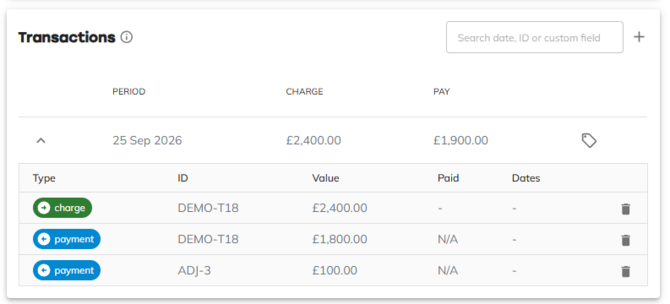
For example, an integrated timesheet has a £2,400 charge and a £1,800 payment, giving £600 margin. A £100 fee wasn't included in your CRM data, so you add a £100 payment with the ID ADJ-3 on the same date. The pay total becomes £1,900 and the margin drops to £500. When the integration syncs again, your £100 payment remains.
Watch out for double-counting
A unique-ID adjustment stays on the placement until you remove it, even if the same correction later arrives from your CRM.
In the example above, if someone later adds the missing £100 to the source data in your CRM, the integration will bring it in and your manual £100 will still be there, so the fee is counted twice. If you correct the source data, delete the matching manual adjustment in Konquest so the placement goes back to the integrated value.
Editing and deleting adjustments
To edit a charge or payment, add it again with the same ID and type. The new details replace the old ones. There's no separate edit button.
To view or delete transactions:
- In the Transactions box, find the date you need. Transactions are grouped by date, with charge and pay totals for each. You can use the search box to find transactions by date, ID or custom field.
- Select the arrow on the row to expand it and see each charge and payment.
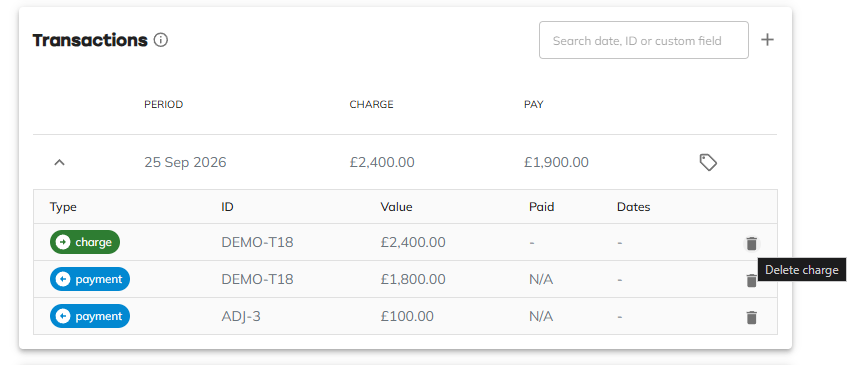
- Select the bin icon on the entry you want to remove, then confirm.
Deleting removes only that entry. If a charge and a payment share an ID, they're deleted separately.
If you delete an entry whose ID still exists in your integration, the next sync may bring it back.
Tracking when a charge is paid
The optional Payment Received On date lets you record when the client paid, which you can use to drive commission on payment rather than on billing.
This is particularly useful on permanent placements. You can add a charge on the same date and with the same value as the existing fee, just to record when it was paid, without changing the amount.
Once the payment date is recorded:
- If your account tracks a paid status, it can use this date to mark the placement as paid.
- An adjuster can set the placement's value date to its payment date. Once the placement is re-evaluated, the value moves to the date it was paid, so commission accumulates in the period the client paid rather than the period it was billed. See Placement rules and adjusters for how to set this up.

Current limitations
- Each charge or payment is a single amount. Line-item breakdowns can't be viewed or edited yet.
- Payments can't be added to permanent placements.
Summary
- Admins can add charges (money received) and payments (money paid to the worker) to any placement from its Transactions box.
- Billing adjustments feed into commission calculations, including thresholds and bands. Statement adjustments don't.
- A transaction takes priority over any fee or timesheet value on the same date. On a new date, it adds a new commissionable value.
- Contract placements need a current charge rate to add charges and a current pay rate to add payments. Permanent placements only support charges.
- Use a unique ID so integration syncs don't overwrite your adjustment, and delete it if the same correction later comes through from your CRM.
- To edit, re-add with the same ID and type. To remove, expand the row and use the bin icon.
- Record a Payment Received On date to drive paid status or move commission to the date the client paid.
Manual billing adjustments put you in control of the numbers your commission is built on. Rather than waiting for a CRM fix or patching statements after the fact, you can correct a billing at source and know that your consultants' thresholds, bands and payouts all reflect the right figure, with no surprises on pay day.