
Overview
Konquest integrates with Bullhorn Back Office by reading data from two specific custom object types in Bullhorn ATS — a Placement Custom Object (for timesheet and hours data) and a Client Corporation Custom Object (for invoice data). Before Konquest can be configured, Bullhorn must set up a data sync between Back Office and ATS, and you will need to know which custom object instances are being used.
Step 1: Contact Bullhorn Support
Reach out to Bullhorn Support and request that a data sync be enabled between Bullhorn Back Office and Bullhorn ATS.
Email: bullhornsupporttickets@bullhorn.com
In your request, let them know you are setting up a Konquest integration and need to know which PlacementCustomObjectInstance is being used (e.g. placementCustomObject1, placementCustomObject2, etc.) and which ClientCorporationCustomObjectInstance is being used (e.g. clientCorporationCustomObject1, clientCorporationCustomObject2, etc.). Make a note of both — you will need them when configuring the integration in Konquest.
Then provide the details in Step 2 below (or link them to this article) to ensure your data sync is setup correclty.
Step 2: Verify the Custom Object Configuration
Once Bullhorn has completed the sync setup, the custom objects in Bullhorn ATS must be configured with the correct fields. The two required configurations are detailed below.
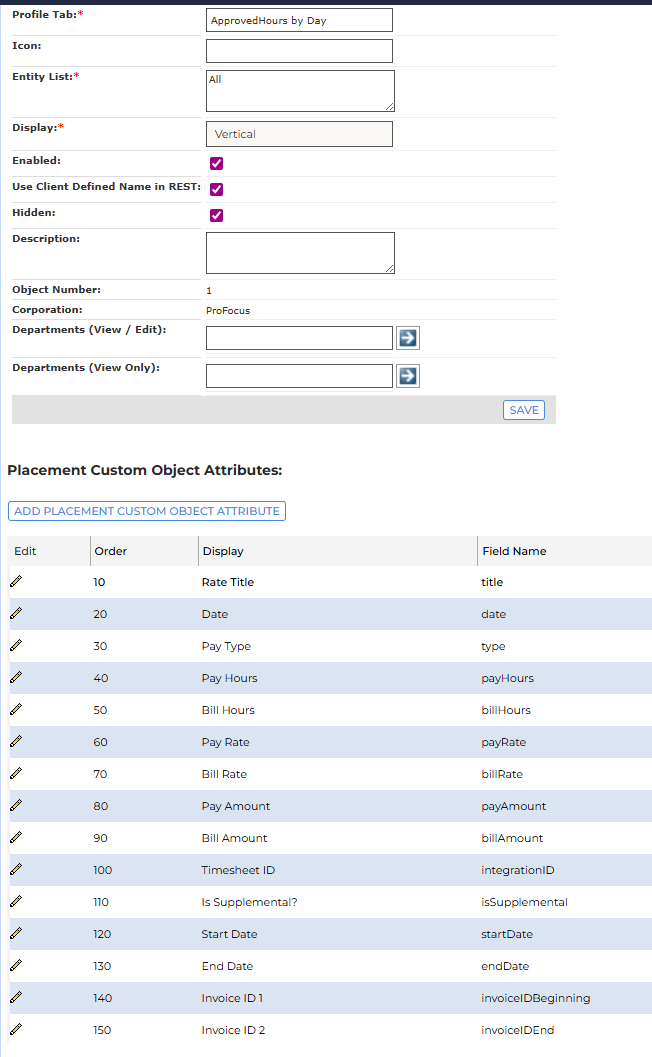
Placement Custom Object — "ApprovedHours by Day"
This object stores timesheet line-item data per placement and must include the following fields:
-
Rate Title (title)
-
Date (date)
-
Pay Type (type)
-
Pay Hours (payHours)
-
Bill Hours (billHours)
-
Pay Rate (payRate)
-
Bill Rate (billRate)
-
Pay Amount (payAmount)
-
Bill Amount (billAmount)
-
Timesheet ID (integrationID)
-
Is Supplemental? (isSupplemental)
-
Start Date (startDate)
-
End Date (endDate)
-
Invoice ID 1 (invoiceIDBeginning)
-
Invoice ID 2 (invoiceIDEnd)
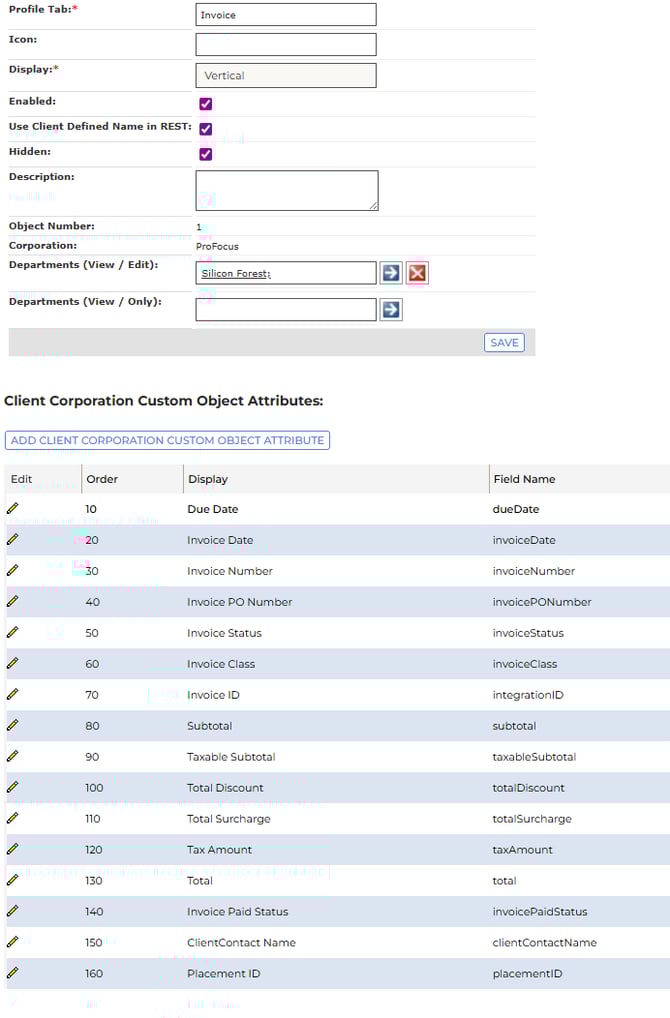
Client Corporation Custom Object — "Invoice"
This object stores invoice-level data per client and must include the following fields:
-
Due Date (dueDate)
-
Invoice Date (invoiceDate)
-
Invoice Number (invoiceNumber)
-
Invoice PO Number (invoicePONumber)
-
Invoice Status (invoiceStatus)
-
Invoice Class (invoiceClass)
-
Invoice ID (integrationID)
-
Subtotal (subtotal)
-
Taxable Subtotal (taxableSubtotal)
-
Total Discount (totalDiscount)
-
Total Surcharge (totalSurcharge)
-
Tax Amount (taxAmount)
-
Total (total)
-
Invoice Paid Status (invoicePaidStatus)
-
ClientContact Name (clientContactName)
-
Placement ID (placementID)
Step 3: Configure the Integration in Konquest
Once Bullhorn Support has confirmed the sync is active and provided the custom object instance names, contact your Konquest administrator or the Konquest support team to complete the configuration. You will need to provide the PlacementCustomObjectInstance and the ClientCorporationCustomObjectInstance number confirmed by Bullhorn. Konquest will use these to map the Back Office data correctly within your account.
Need Help?
If you have questions about this setup, please reach out to your Konquest account manager or submit a support request.